
- 1
Log in to the DPD portal
Use your DPD business account (in Lithuania: esiunta.dpd.lt). Open the menu with your company name at the top right and choose My profile.

- 2
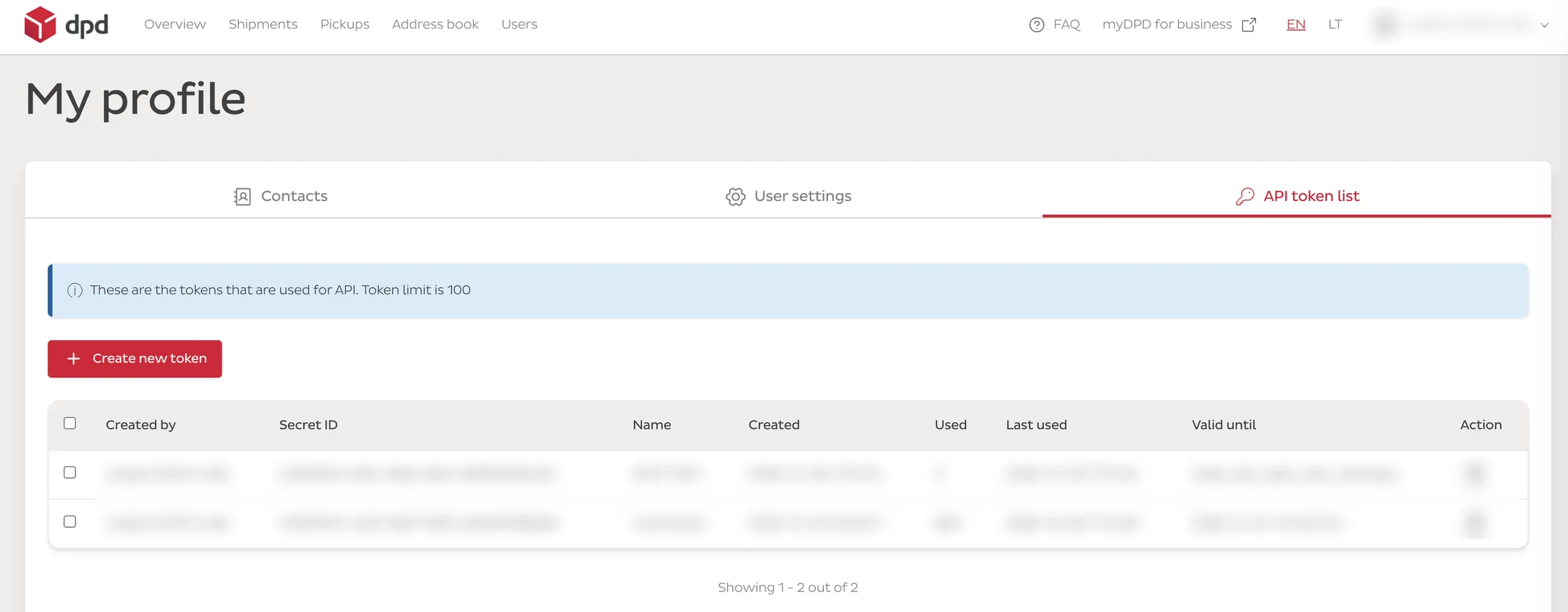
Open the API token list
Go to the API token list tab and press Create new token. If you use DPD with another system too, you will see its tokens here – leave them as they are.
- 3
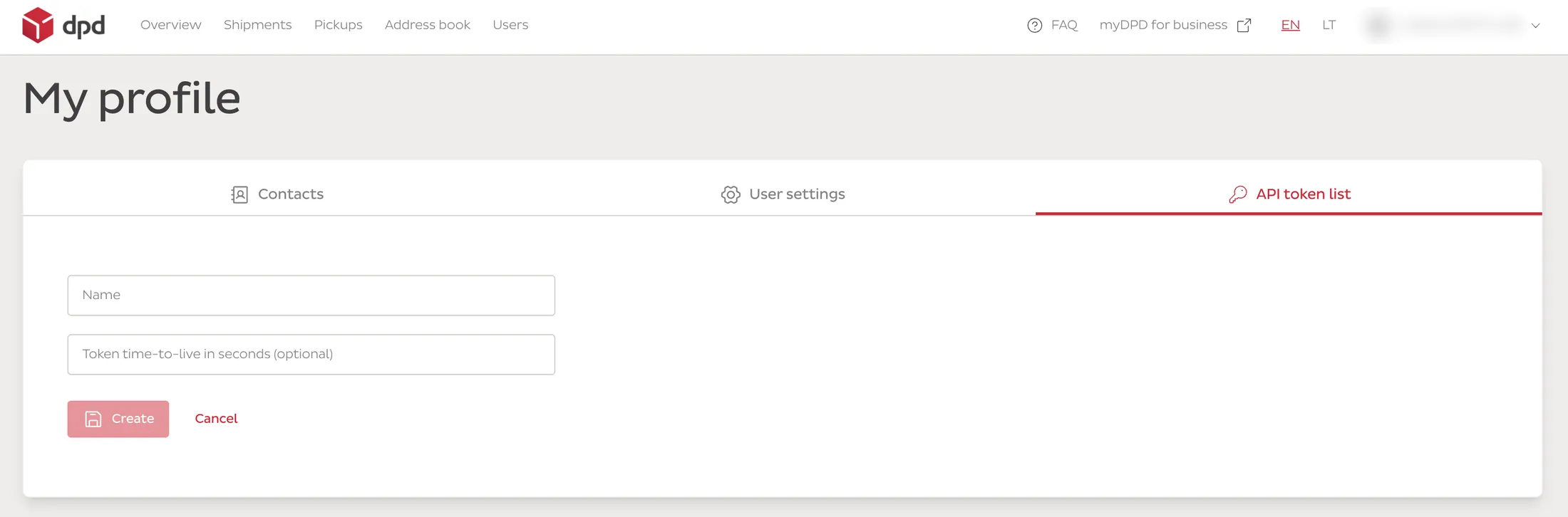
Create the token – and leave the time-to-live empty
Name it Lockership. Leave “Token time-to-live” empty: then the token does not expire. With a time limit, labels would stop working the moment it runs out. Press Create and copy the token.
- 4
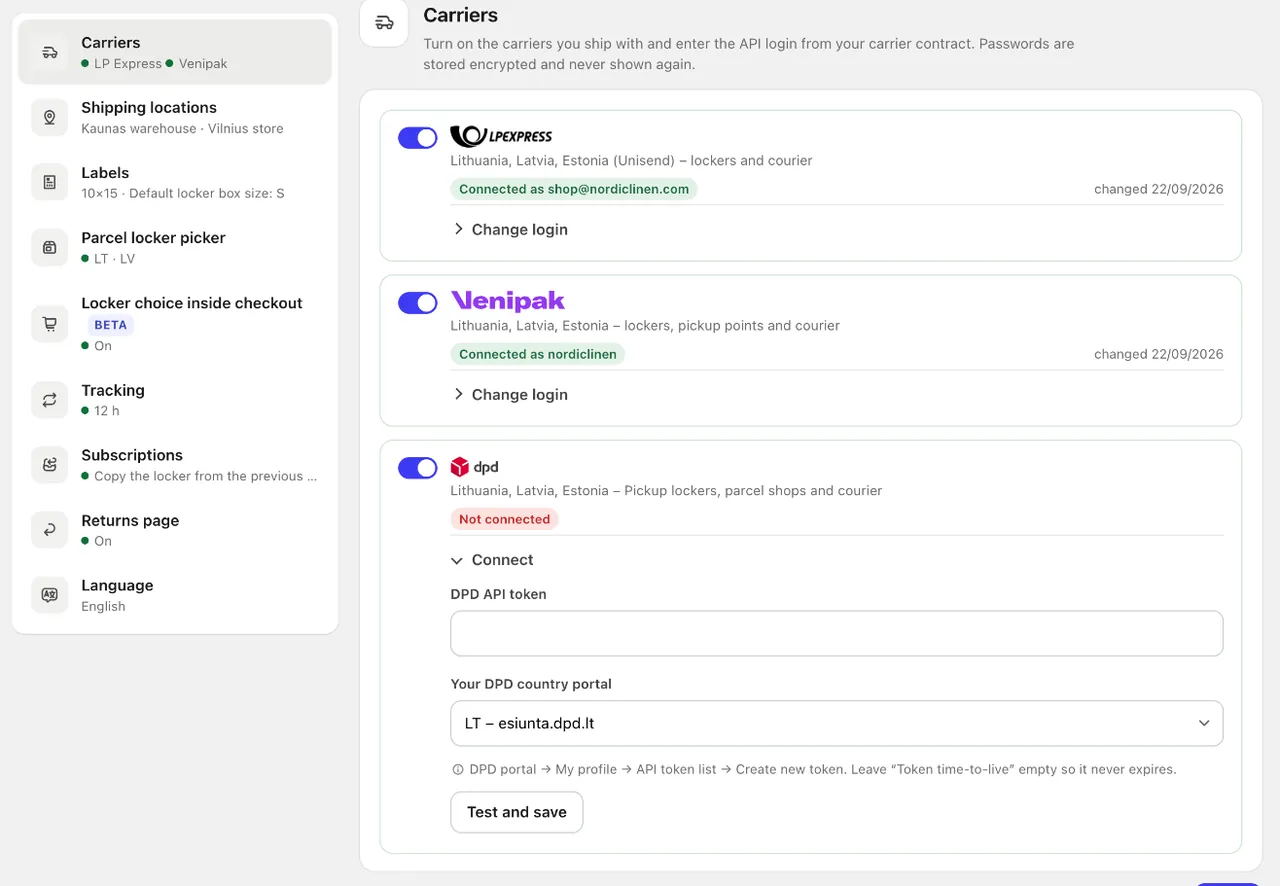
Paste it in Lockership
In Lockership go to Settings → Carriers → DPD, turn DPD on, paste the token, choose your DPD country (Lithuania, Latvia or Estonia) and press Test and save. A green “Connected” means it works.
- 5
Good to know
Cash on delivery works in euros on DPD Pickup lockers and home delivery, if it is in your DPD contract. A label does not book a courier – use Courier in Lockership or drop the parcel at a DPD Pickup point. If the DPD menu has no API token list, ask DPD customer service to enable API access for your account.
Try Lockership on your store before it reaches the App Store
We are starting with a small group of Shopify stores in Lithuania, Latvia and Estonia. Leave your email, and I will help you connect your carriers.