Lockership
  1. Home
  2. Parcel lockers

Let buyers choose their own parcel locker

Two ways: right after payment on any Shopify plan, or in checkout before paying. Either way the locker is saved on the order, and the label is made for it.

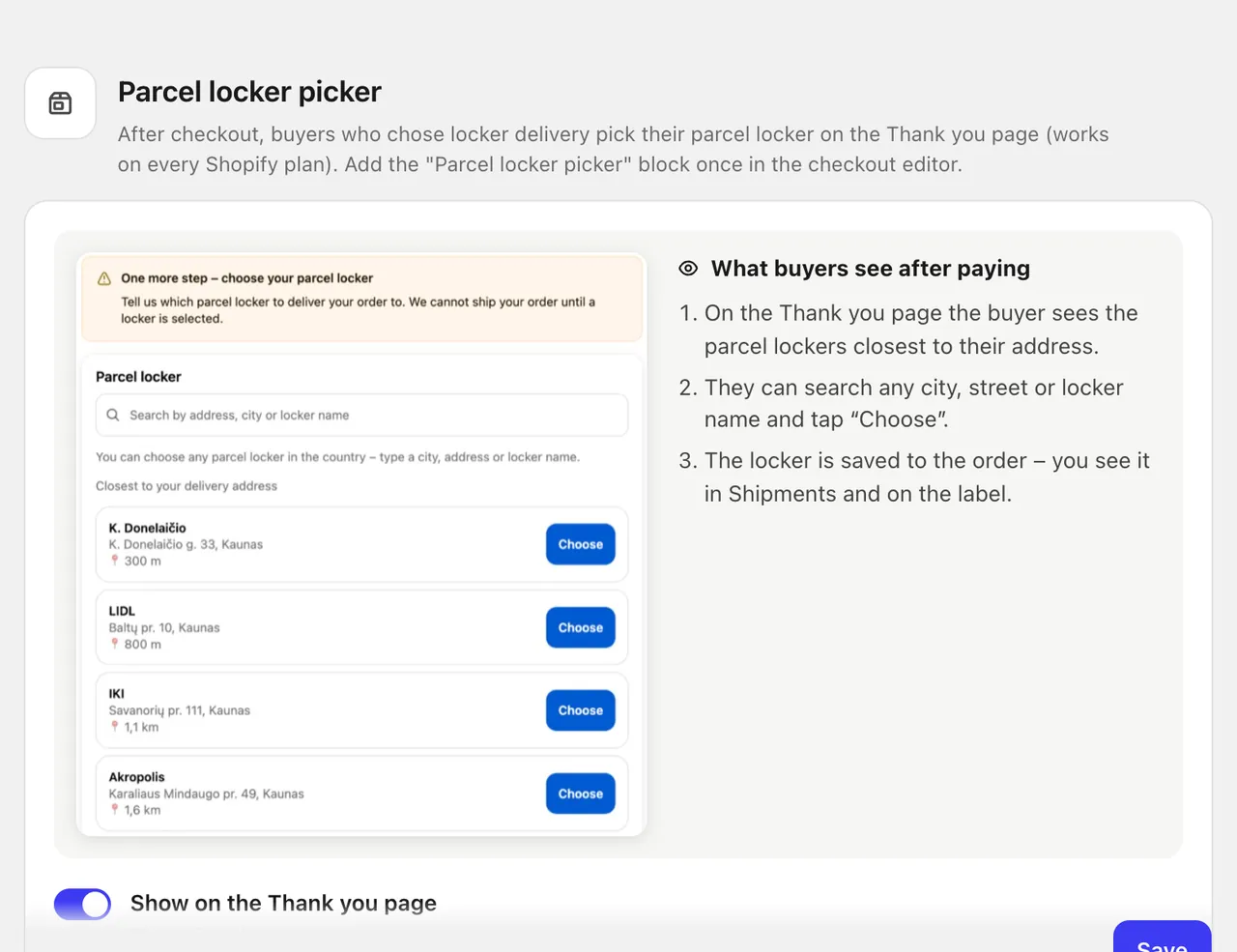
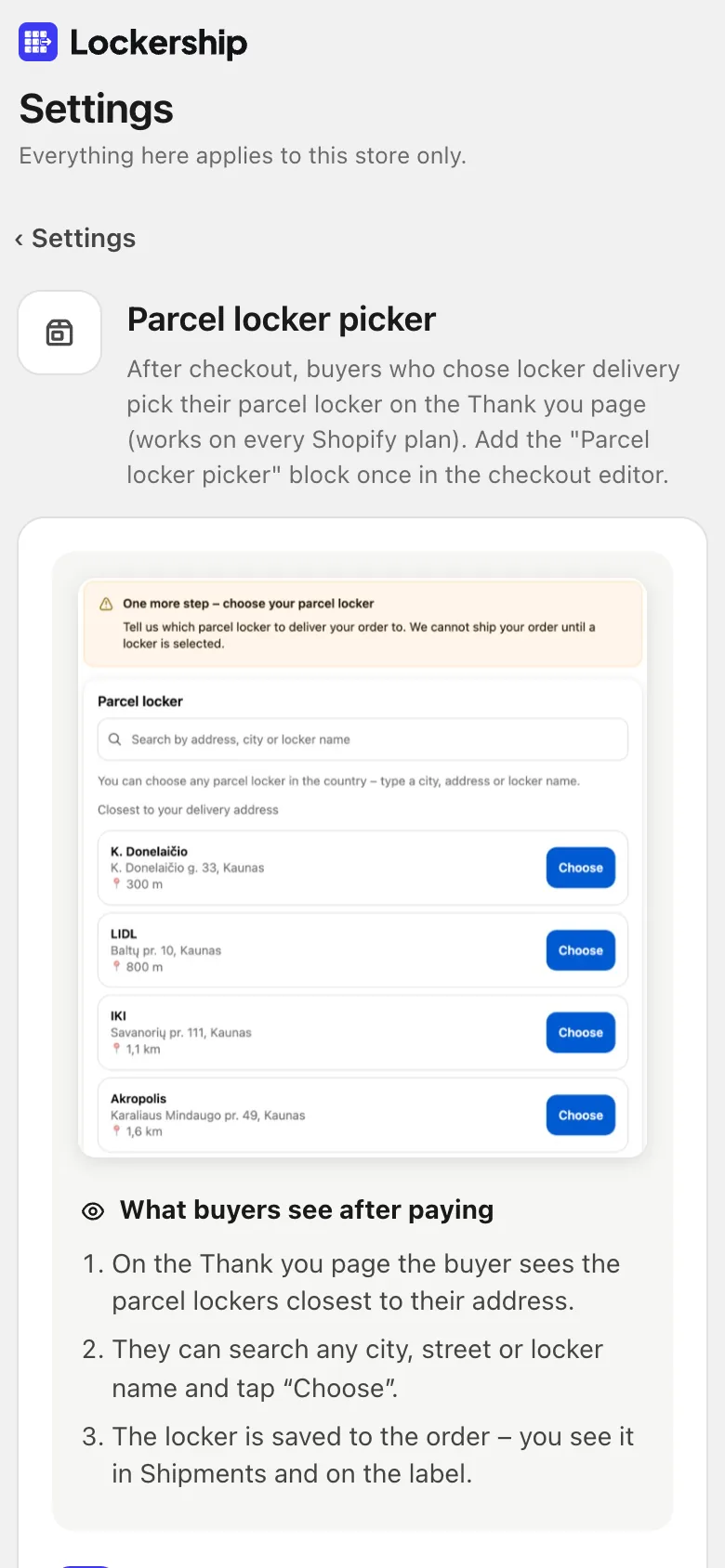
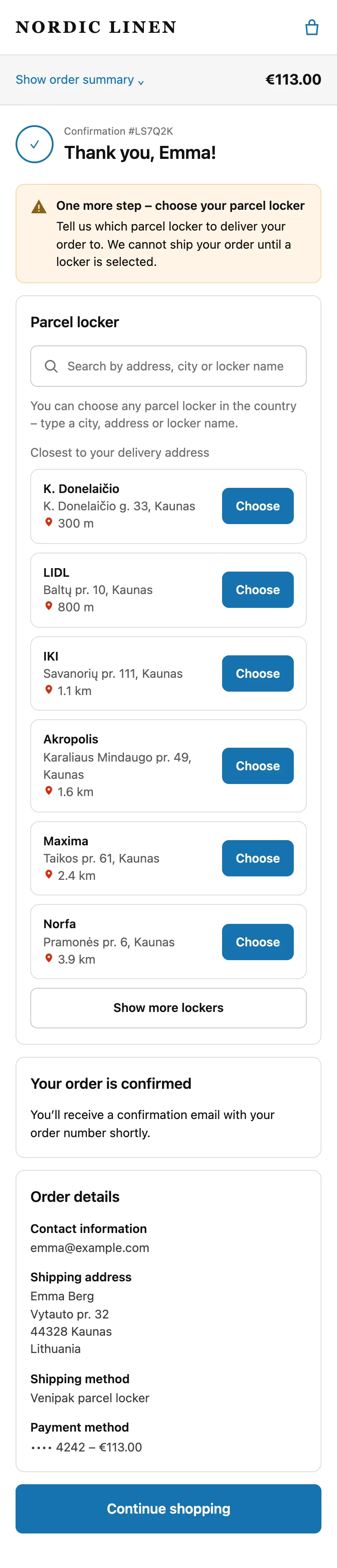
Thank-you page with the Lockership locker picker: nearest lockers with distance and a Choose button
After payment: thank-you page
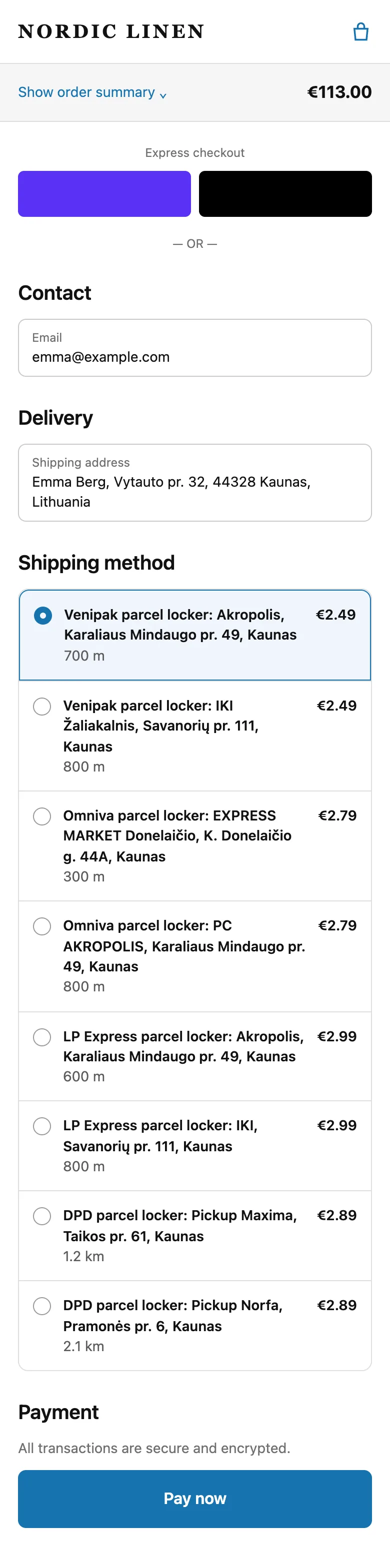
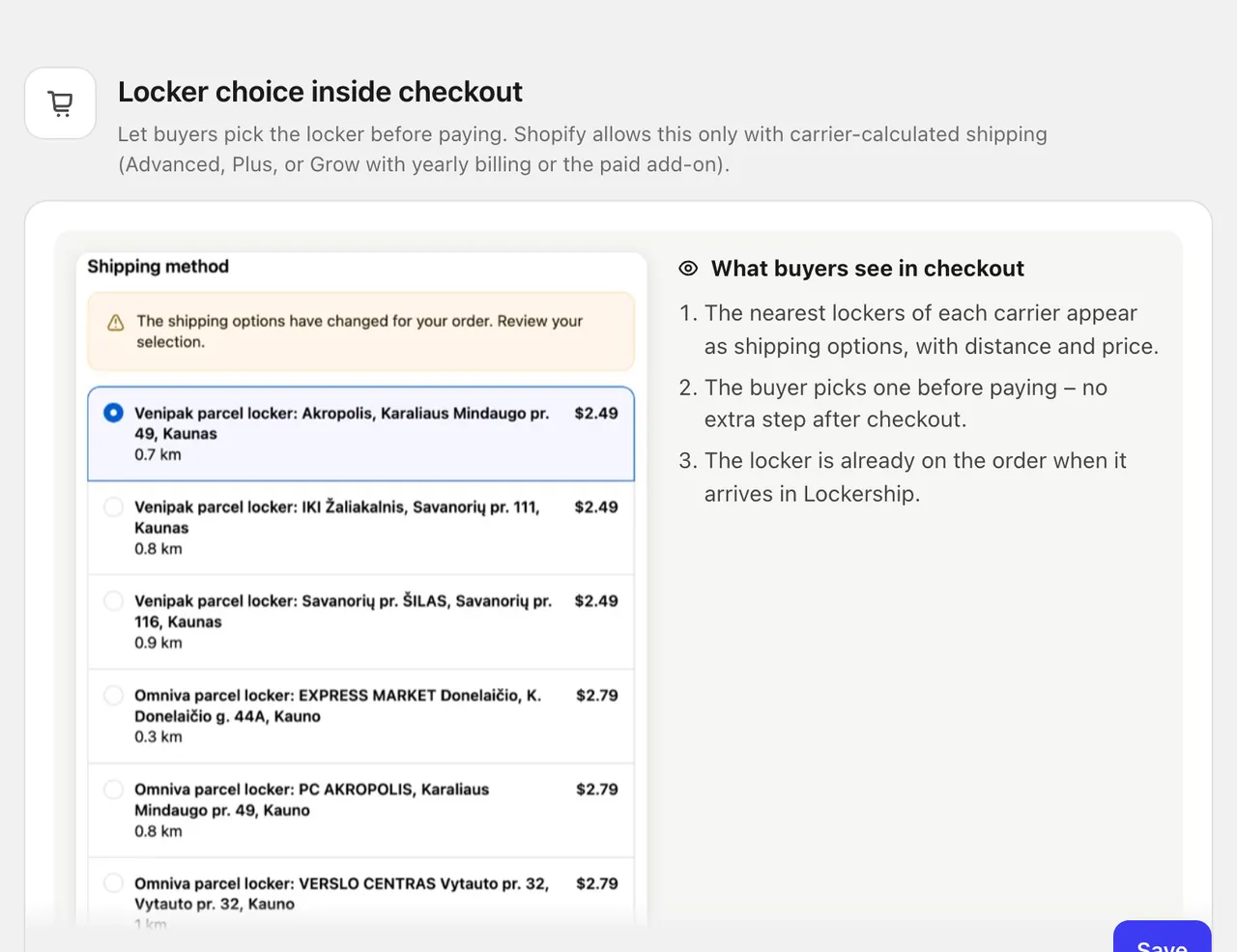
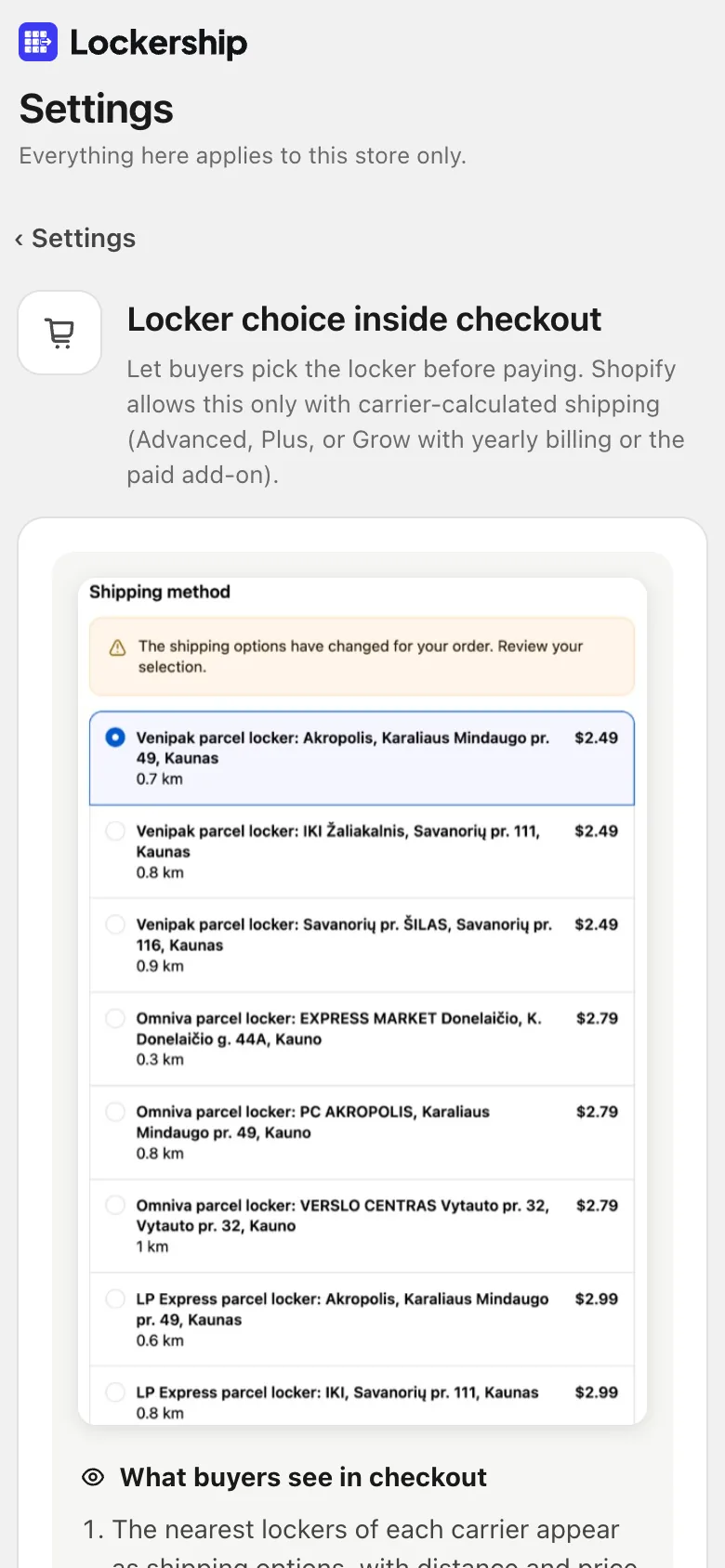
Checkout with LP Express, Omniva, DPD and Venipak lockers as delivery options with distance and price
In checkout: delivery options

After payment or in checkout?

The picker after payment works on every plan and changes nothing in your checkout. Lockers in checkout show the price before paying, but need Advanced, Plus or Grow billed yearly.

After payment

Every Shopify plan

  • Shown on the thank-you page right after paying, and later on the order status page
  • Lists the lockers nearest to the delivery address; the buyer can also search by city, street or locker name
  • The buyer can change the locker until you create the label
  • Works with all four carriers, in the buyer’s language: English, Lithuanian, Latvian, Estonian, Finnish or German
  • Your checkout stays as it is: the buyer picks your locker shipping rate as usual

In checkout

Needs Advanced, Plus or yearly Grow

  • The buyer sees the nearest lockers with distance and price before paying
  • Your own price for each carrier and country
  • Free delivery from an amount you set, per carrier and country
  • Shows the 3, 5, 8 or 10 nearest lockers
  • Included in Advanced and Plus, and in Grow when billed yearly. On other plans Shopify may offer it as a paid add-on (carrier-calculated shipping)
After paymentIn checkout
Where the buyer choosesThank-you page, later the order status pageCheckout, before paying
Shopify planAny planAdvanced, Plus or Grow billed yearly; otherwise with Shopify’s paid add-on, if offered
Delivery priceYour Shopify shipping rateYour price per carrier and country, set in Lockership
Free delivery from an amountSet in your Shopify shipping ratesPer carrier and country, in Lockership
Buyer changes the locker laterYes, until the label is createdYes, if the picker is also on the order status page
How to set it upGuide: picker after paymentGuide: lockers in checkout

You can use both: lockers in checkout where your plan allows it, and the choice after payment for orders that still have no locker.

Lockership settings for the locker picker after payment: thank-you page, order status page and countries

Turning on the picker after payment

Choose the countries and where the picker shows: the thank-you page, the order status page or both. Then add the Lockership block in Shopify’s checkout editor.

Step-by-step guide
Lockership settings for lockers in checkout: price per carrier and country, free from an amount

Your prices in checkout

Set a price for each carrier and country, and the order amount from which delivery is free – also per carrier and country.

Step-by-step guide
Hands placing a parcel into a locker compartment

Lithuania, Latvia and Estonia, plus DPD in 22 more EU countries

All four carriers cover the Baltics. With DPD you can also show Pickup lockers in other EU countries.

Lockers per carrier

CarrierNetworkCountriesStatus
LP ExpressParcel terminalsLT · LV · EEAvailable
VenipakLockers and pickup pointsLT · LV · EEAvailable
OmnivaParcel machinesLT · LV · EEEarly access
DPDPickup lockers and parcel shopsLT · LV · EE + 22 EU countriesEarly access
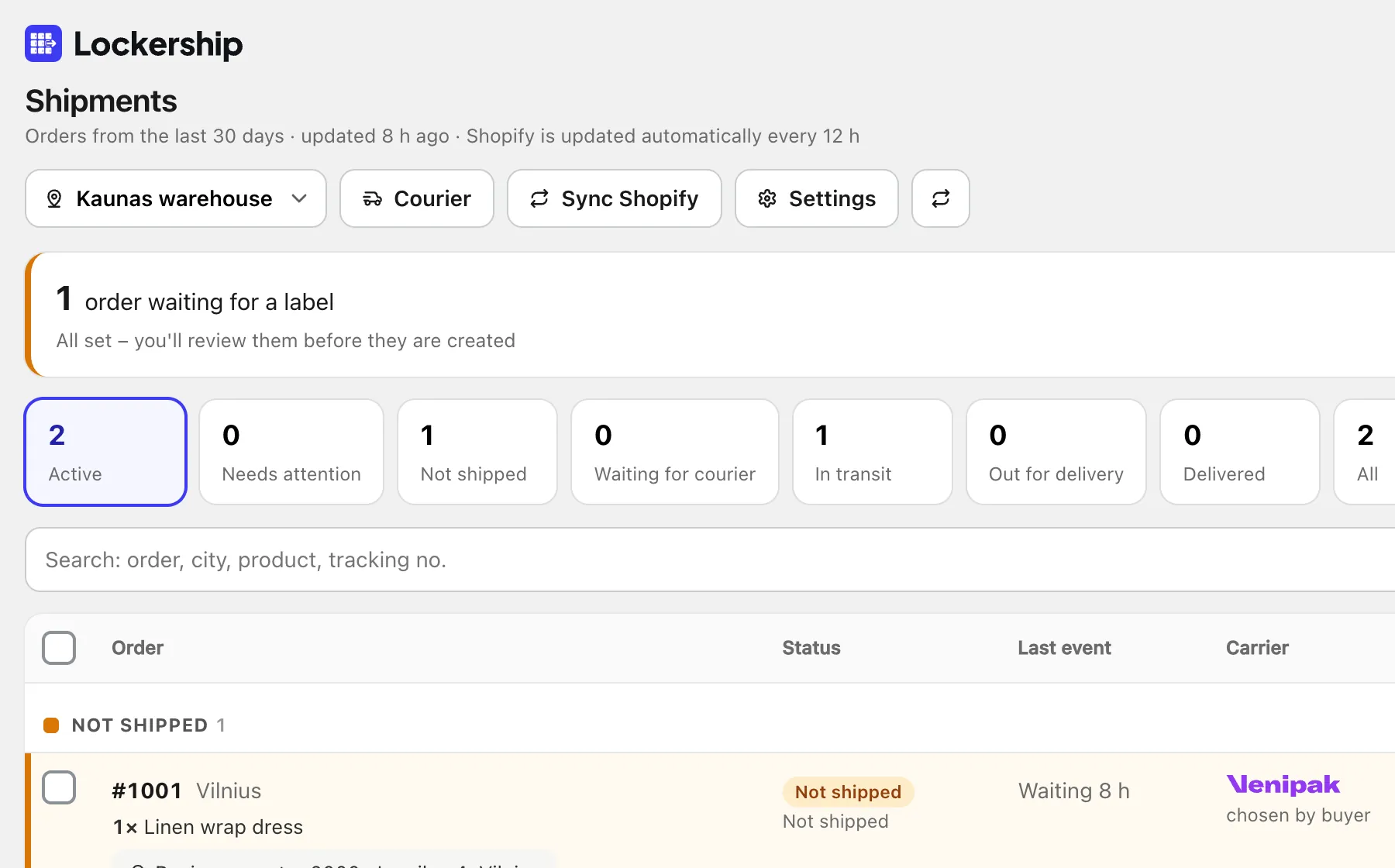
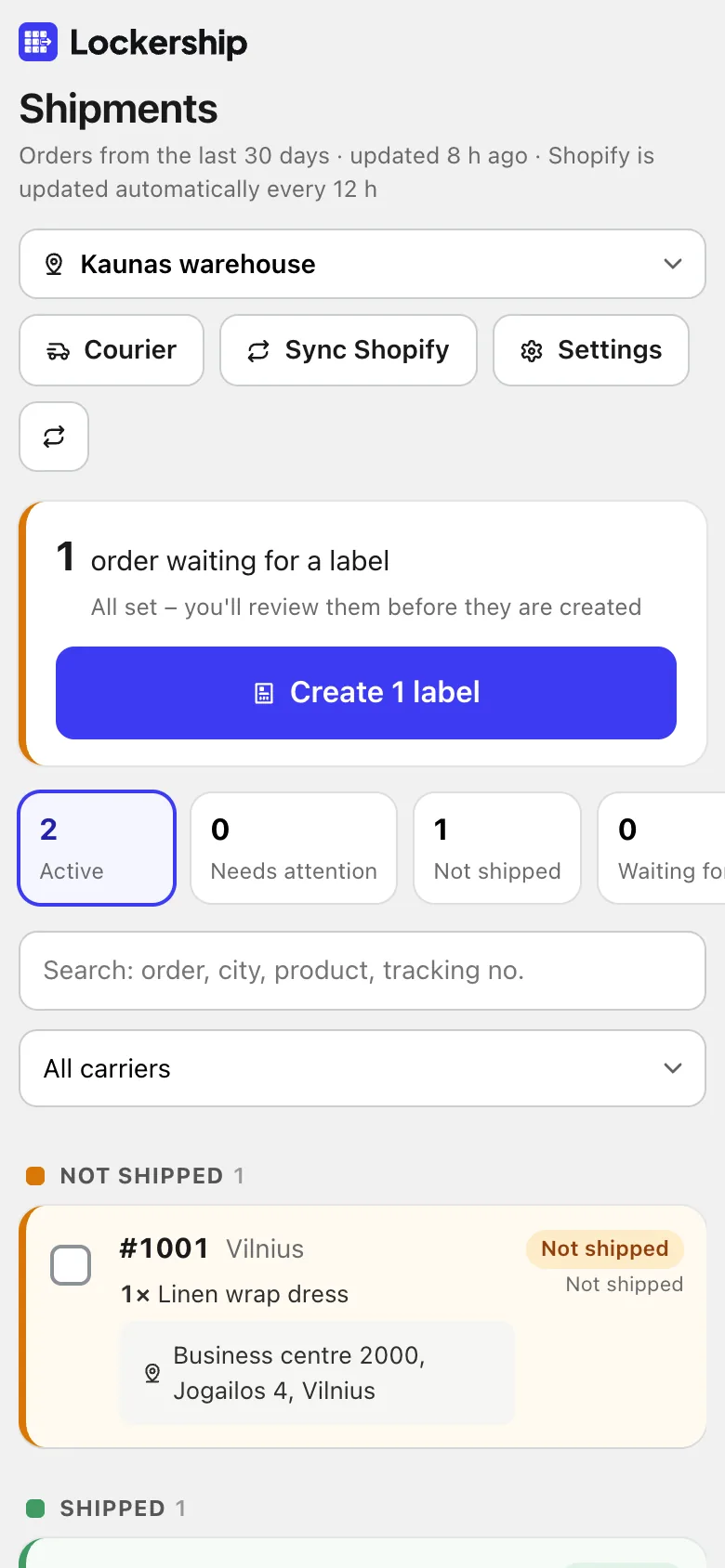
The chosen locker shown under each order in Lockership

The locker shows on every order

The chosen locker is shown under each order in the Shipments list. Orders without a locker are marked, and when a buyer calls, you can choose or change the locker yourself.

About lockers

Which Shopify plan do I need?
Any plan. Labels, tracking, returns and the locker choice after payment work on every Shopify plan. Only lockers inside checkout need carrier-calculated shipping: Advanced and Plus include it, and so does Grow when billed yearly; on other plans Shopify may offer it as a paid add-on – check in your Shopify admin. More about parcel lockers.
Can buyers change the locker later?
Yes, on the order status page (the link in their order email), until you create the label. After that the choice is locked so the parcel and the order match. You can also change it yourself from the order in Lockership. See the picker guide.
How does the buyer find the right locker?
The picker lists the nearest lockers to the delivery address, with distance, and the buyer can search by street, city or locker name. It shows only lockers of the carrier in the chosen delivery method.
Which languages do buyers see? Can I change the texts?
The picker speaks English, Lithuanian, Latvian, Estonian, Finnish and German, picked from the buyer’s checkout language. In Translations you can rewrite any text or add another language. The returns page has its own set of texts.
What happens with subscription renewals?
Renewal orders arrive without a locker. Lockership copies the locker from the buyer’s previous order with the same carrier, so you don’t have to ask again. You can turn this off in Settings → Subscriptions.
Which countries are covered?
Lithuania, Latvia and Estonia with all four carriers. DPD Pickup lockers and parcels also in 22 more EU countries. Shipping outside the EU and carriers like DHL or UPS aren’t supported yet.

Try Lockership on your store before it reaches the App Store

We are starting with a small group of Shopify stores in Lithuania, Latvia and Estonia. Leave your email, and I will help you connect your carriers.