
- 1
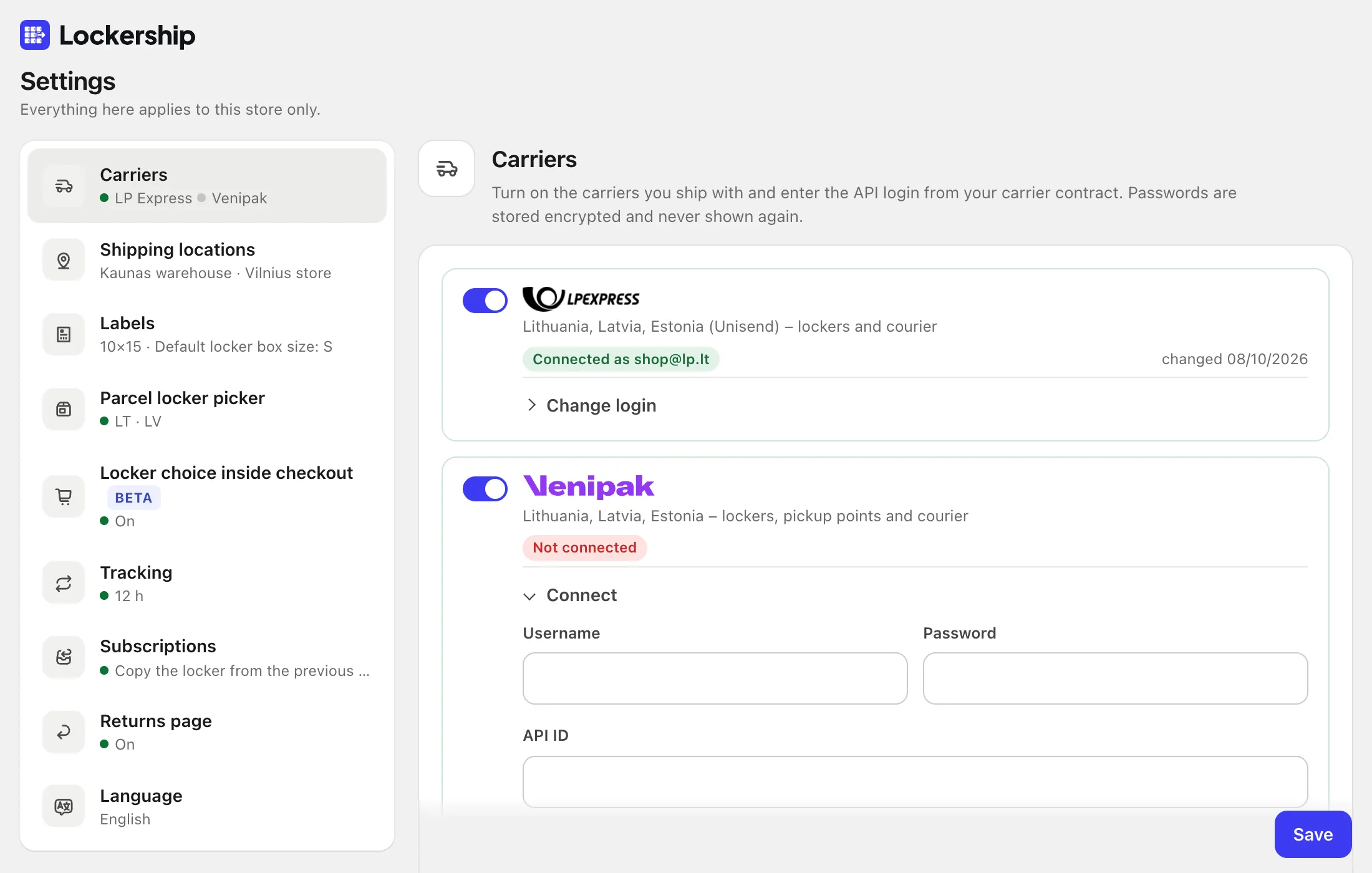
Open Settings → Carriers
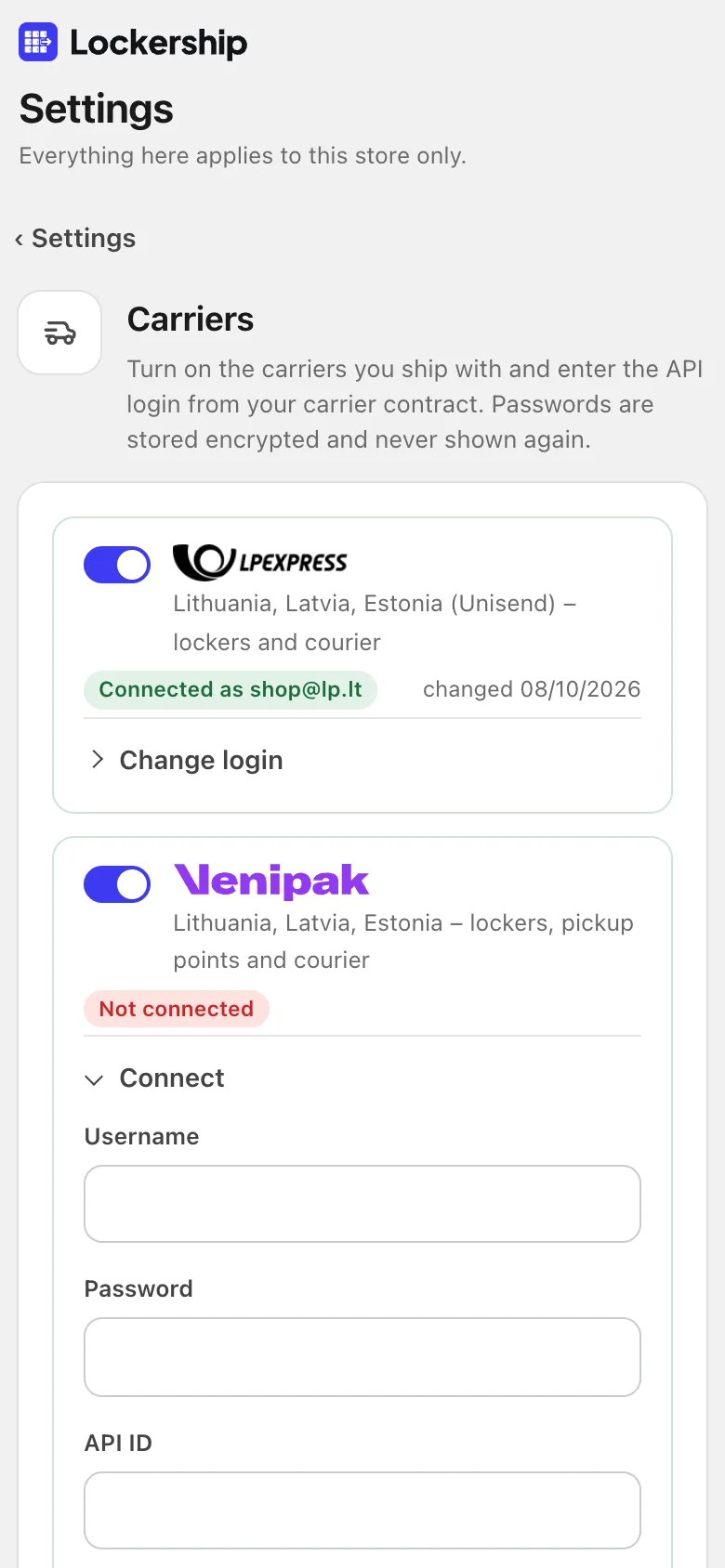
Turn on the carriers you use. Each one opens a small form. Passwords are encrypted and never shown again; leave the field empty later to keep the saved one.
- 2
LP Express (Unisend)
Username and password of your LP Express “Mano siuntos” self-service account. API access is switched on by LP Express: write to api-manosiuntos@post.lt.
- 3
Venipak
Your Venipak client username, password and API ID (the 5-digit number from your contract). Ask your Venipak manager if you don’t have them.
- 4
Omniva
The OMX API username and password from your Omniva account manager (integrations@omniva.ee). For cash on delivery also add your IBAN and the COD receiver name as it is in the bank.
- 5
DPD
A DPD API token (DPD portal → API → create a token; needs a DPD contract) and your DPD country portal (Lithuania, Latvia or Estonia).
- 6
Press “Test and save”
Lockership logs in to the carrier right away. A green “Connected” badge means labels will work; otherwise you see the carrier’s own error message.
Try Lockership on your store before it reaches the App Store
We are starting with a small group of Shopify stores in Lithuania, Latvia and Estonia. Leave your email, and I will help you connect your carriers.