
What is Shopify Flow?
Shopify Flow is Shopify’s own automation app. It is free on every Shopify plan. You build simple rules: when something happens, check a condition, do something. For example: when an order is paid, if it is over 100 €, add the tag “VIP”. No code, everything is clicked together in Shopify.
Shopify itself only knows that an order was fulfilled. It does not know when the parcel is waiting in a locker, when the buyer picked it up, or that it is going back to you. Lockership does, and passes these moments to Flow as triggers, so your rules can react to them.
Why use it
| When | You can | Why it helps |
|---|---|---|
| Parcel delivered | Wait 3 days and email the buyer asking for a review (or send the event to Klaviyo). | Reviews come when the product is in hand, not before it arrives. |
| In the locker | Tag the order “waiting for pickup”; after a few days remind the buyer. | Fewer parcels left in lockers and sent back – each one costs you shipping twice. |
| Parcel problem | Tag the order, send your team an email or Slack message, create a task. | You find out about failed deliveries the same day, not when the buyer complains. |
| Label created | Add an order note, tag it “packed”, update a spreadsheet. | Your warehouse and accounting see what has shipped without asking. |
What comes with each trigger
The Shopify order (with the buyer, items, tags and everything else Flow knows about orders), plus tracking number, carrier, status as the carrier wrote it, and the tracking link. Use them in conditions (“only DPD parcels”) and in messages.
Good to know
- Works for parcels made in Lockership, with all four carriers: LP Express, Omniva, DPD and Venipak.
- Nothing happens until you build a workflow – the triggers just wait to be used.
- No extra cost: Flow is free, and the triggers are part of every Lockership plan.
Set it up
- 1
Install Shopify Flow
Flow is Shopify’s free automation app. Install it from the Shopify App Store, or open it from Lockership → Settings → Tracking → Open Shopify Flow.
- 2
Pick a Lockership trigger
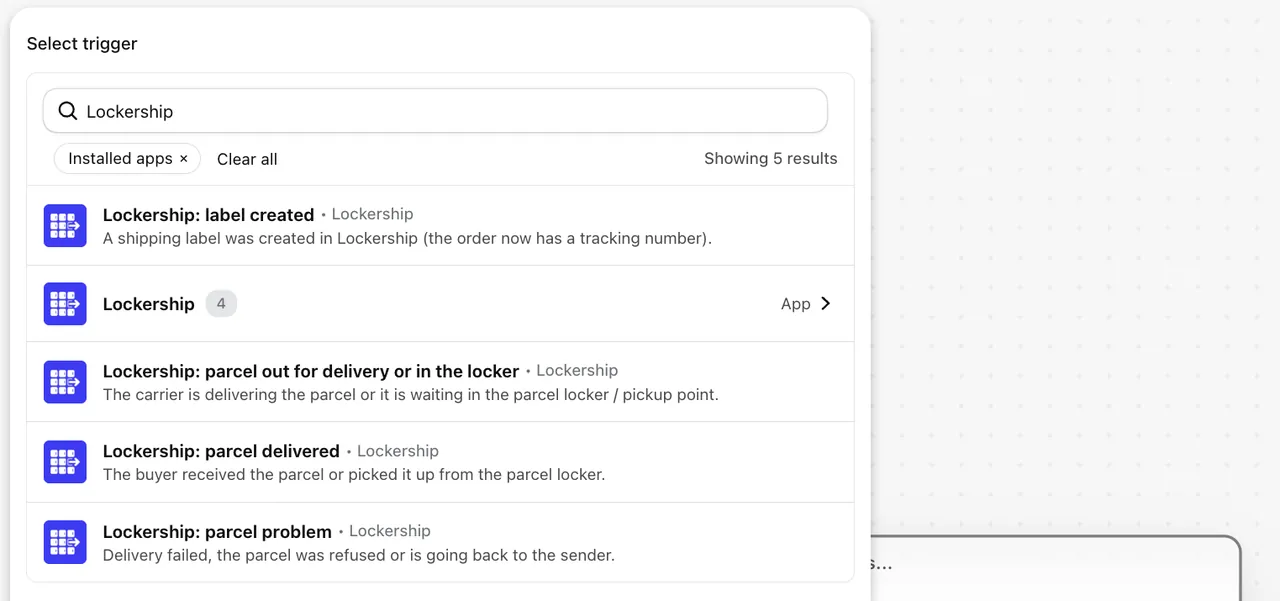
In Flow press Create workflow → Select a trigger and search “Lockership”. There are four: label created, parcel out for delivery or in the locker, parcel delivered and parcel problem (failed delivery, refused or going back to you).
- 3
Use the parcel details
Each trigger brings the Shopify order with the buyer, plus the tracking number, carrier, status and tracking link. Use them in conditions and in emails or messages.
- 4
Ideas to start with
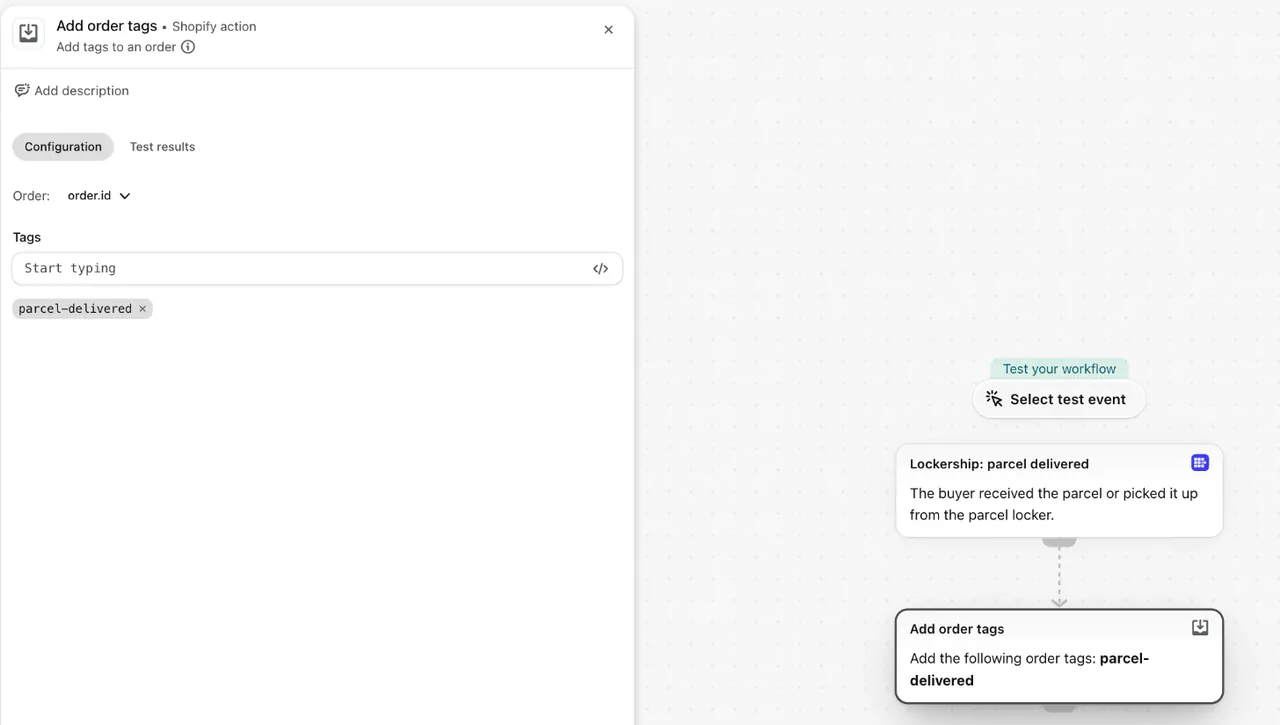
The picture: parcel delivered → Add order tags “parcel-delivered” – the simplest workflow, two clicks. More: Delivered → wait 3 days → ask for a review. In the locker → tag the order “waiting for pickup”. Problem → tag the order and send your team a Slack or email alert. Label created → add a note for the warehouse.
- 5
When triggers fire
“Label created” fires right away. Parcel events come with the status sync: every 3, 6 or 12 hours as set in Settings → Tracking, or at once when you press Sync Shopify.
Try Lockership on your store before it reaches the App Store
We are starting with a small group of Shopify stores in Lithuania, Latvia and Estonia. Leave your email, and I will help you connect your carriers.